> For the complete documentation index, see [llms.txt](https://docs.silkline.ai/llms.txt). Markdown versions of documentation pages are available by appending `.md` to page URLs; this page is available as [Markdown](https://docs.silkline.ai/suppliers.md).

# Suppliers

Centrally manage suppliers — track approval status, screen against denied party lists, performance scorecards, contacts, documents, and configure the default send behavior for orders

The **Suppliers** section in Silkline provides buyers with a centralized view of their suppliers, allowing for seamless management of supplier relationships, performance tracking, and streamlined communication. The page is designed to help procurement teams efficiently oversee their supplier base, track order fulfillment, and address supplier-related issues.

## Import suppliers and contacts from a spreadsheet

For standalone organizations, open **Suppliers** and click the wrench (**Admin tools**). Select **Bulk import suppliers** to create or update suppliers, or **Bulk import supplier contacts** to import contacts for existing suppliers. For customer users, bulk import is unavailable when the organization has an integration. Silkline support staff in Silkline admin mode can use all import types.

Supplier imports require **Create Supplier** and **Edit Supplier** permissions. Contact imports require **Edit Supplier**, **Create Supplier Contact**, and **Edit Supplier Contact**. Import suppliers before their contacts.

1. Select the import type and download the CSV template if needed.
2. Upload a CSV or Excel spreadsheet and map its columns.
3. Review and correct the data, then continue to the import preview.
4. Run **Create** for new records and **Update** for existing records as needed.

Suppliers match by **Name**. Supplier imports contain supplier fields; contact emails and names belong in the separate **Supplier Contacts** import. Contacts match by **Supplier Name** and **Email**. Updates preserve fields you do not map. Mapping a tag column replaces its list; a blank mapped value clears it.

## Default send behavior

Each supplier has a **Default send behavior** that determines how orders for that supplier are sent when they are approved. It is configured in the supplier's [Order Defaults](#order-defaults) and is copied onto each new order, where it can still be changed before the order is approved.

<table><thead><tr><th width="232">Option</th><th>Behavior</th></tr></thead><tbody><tr><td>Manual release</td><td><strong>Default.</strong> Orders are sent to the supplier manually. Open orders show up in your queue to send.</td></tr><tr><td>Auto-send</td><td>The order is automatically emailed to the supplier's <a href="#contacts">order contacts</a> when it is approved. Auto-send requires at least one contact with the <strong>Send Orders</strong> setting enabled and an email address — without one, the order is not sent automatically and stays in Approved for manual sending. The email uses your Send Order template; in FedRAMP-enabled organizations, keep CUI and ITAR data out of that template.</td></tr><tr><td>Skip send</td><td>The order stays in Approved until a buyer releases it to Open, at which point it is marked as sent without emailing the supplier. Useful for suppliers (such as DigiKey, ULINE, McMaster-Carr, and Mouser) where buyers place orders through an eCommerce website. Open orders for that supplier bypass the "New" tab and automatically advance to the "Unconfirmed" tab, where they can be marked as confirmed as applicable.</td></tr></tbody></table>

## Editing a supplier

Silkline helps companies maintain important master data on suppliers such as their approval status and notes and required documentation.

For customers whose supplier master data comes from an external system (such as a connected ERP), some supplier fields may not be editable in Silkline.

To edit a supplier, click the pencil icon next to the Supplier's name in the title bar:

### Supplier form fields

The supplier form is organized into several sections to help manage different aspects of supplier information:

#### Company Details

<table><thead><tr><th width="191">Field</th><th>Description</th></tr></thead><tbody><tr><td>Name</td><td><strong>Required.</strong> The supplier's legal or business name. This name will appear throughout Silkline when selecting suppliers.</td></tr><tr><td>Description</td><td><strong>Optional.</strong> A description of the supplier and their capabilities. This can include information about what types of products or services they provide.</td></tr><tr><td>Tags</td><td><strong>Optional.</strong> Tags to categorize and organize suppliers. Tags can be used for several purposes such as categorizing by capability/commodity group (e.g., services, sheet metal, 5-axis machined parts), indicating approval scope or quality level (e.g., Tier 1, Tier 2), or compliance status (e.g., ITAR). See the <a href="#tags">Tags section</a> below for more details.</td></tr><tr><td>Primary Phone</td><td><strong>Optional.</strong> The main phone number for contacting the supplier.</td></tr><tr><td>Website</td><td><strong>Optional.</strong> The supplier's website URL. You can enter the URL with or without "https://" (e.g., "example.com" or "https://example.com").</td></tr><tr><td>Address</td><td><strong>Optional.</strong> The supplier's physical address: Address Line 1, Address Line 2, City/Locality, State/Region, Postal Code, and Country.</td></tr></tbody></table>

#### Approval Status

See the [Approval Supplier Lists](#approval-supplier-lists) section below for detailed information about approval statuses, notes, and preferred status.

<table><thead><tr><th width="191">Field</th><th>Description</th></tr></thead><tbody><tr><td>Approval Status</td><td><strong>Optional.</strong> The supplier's approval status: Approved, Evaluation, Restricted, Prohibited, or None. See <a href="#approval-statuses">Approval Statuses</a> below for details on each status.</td></tr><tr><td>Preferred</td><td><strong>Optional.</strong> Mark approved suppliers as preferred vendors. Only suppliers with "Approved" status can be marked as preferred.</td></tr><tr><td>Archived</td><td><strong>Optional.</strong> Archived suppliers will not appear in dropdown selections by default, but can still be accessed when viewing existing records that reference them.</td></tr><tr><td>Approval Notes</td><td><strong>Optional.</strong> Add notes documenting the rationale or details of the supplier approval status. These notes appear in tooltips when hovering over the approval status badge throughout the application.</td></tr><tr><td>Approved Pedigrees</td><td><strong>Optional.</strong> When the supplier pedigree allow list is enabled for your organization, select which pedigrees (quality/traceability levels) are approved for this supplier. This restricts which pedigrees can be selected when ordering from this supplier.</td></tr></tbody></table>

#### Order Defaults

These fields set default values that will be pre-populated when creating new purchase orders from this supplier. They can be overridden on individual orders.

Payment Terms, Delivery Terms, and Delivery Mode also appear as columns on the Suppliers table (Delivery Mode is hidden by default and can be enabled from the column settings), so you can review each supplier's order defaults at a glance.

<table><thead><tr><th width="191">Field</th><th>Description</th></tr></thead><tbody><tr><td>Workflow</td><td><strong>Optional.</strong> Select a default approval workflow for orders from this supplier. If not specified, the organization's default workflow will be used.</td></tr><tr><td>Terms &#x26; Conditions</td><td><strong>Optional.</strong> Select default terms and conditions for orders from this supplier. These are legal terms that appear on the purchase order.</td></tr><tr><td>Payment Terms</td><td><strong>Optional.</strong> Set default payment terms for orders from this supplier (e.g., NET 30, NET 60, Credit Card).</td></tr><tr><td>Delivery Terms</td><td><strong>Optional.</strong> Set default delivery terms (Incoterms) for orders from this supplier (e.g., FOB Origin, DAP, DDP).</td></tr><tr><td>Delivery Mode</td><td><strong>Optional.</strong> Set default delivery/shipping mode for orders from this supplier (e.g., Freight, Air, Ground).</td></tr><tr><td>Currency</td><td><strong>Optional.</strong> Set default currency for orders from this supplier. If not specified, your organization's base currency will be used.</td></tr><tr><td>Default Send Behavior</td><td><strong>Optional.</strong> How orders from this supplier are sent when approved: <em>Manual release</em> (default), <em>Auto-send</em>, or <em>Skip send</em>. See <a href="#default-send-behavior">Default send behavior</a> above for details. Copied onto each new order, where it can be overridden.</td></tr></tbody></table>

#### Additional Data

If your organization has configured custom fields for suppliers, they will appear in this section. Custom fields allow you to track organization-specific data about suppliers.

#### Documentation

See the [Supplier Data](#supplier-data) section below for detailed information about tracking supplier documentation such as NDAs, contracts, certifications, and other important files.

## Approval Supplier Lists

Silkline helps companies maintain an Approved Supplier List (ASL/AVL) and track the approval status and notes for each supplier. Approval statuses show up as badges throughout the app, such as when selecting a supplier on a Request.

### Approval statuses

<table><thead><tr><th width="167">Approval Status</th><th>Explanation</th></tr></thead><tbody><tr><td>Approved</td><td>Suppliers that are fully approved.</td></tr><tr><td>Evaluation</td><td>Suppliers that you are currently onboarding or evaluating through qualification orders.</td></tr><tr><td>Restricted</td><td>Suppliers that are conditionally approved. This is useful when a supplier is in an onboarding or probation period, or if the supplier is only approved for certain pedigrees / quality levels.</td></tr><tr><td>Prohibited</td><td>Suppliers that are prohibited from future orders.</td></tr><tr><td>(None)</td><td>Supplier approval status has not been set.</td></tr></tbody></table>

### Approval notes

Add notes documenting the rationale or details of the supplier approval status. Notes show up in the tooltip when overing over the approval status badge:

### Preferred status

In addition to approval status, approved vendors can be marked as preferred, which is indicated with a plus icon next to the approved status badge:

Only approved vendors can be marked as preferred. Downgrading a vendor's approval status to Restricted, Prohibited, or none will automatically turn off the vendor's approval status.

## Denied Party Screening

Denied Party Screening checks a supplier against the [U.S. Consolidated Screening List](https://www.trade.gov/consolidated-screening-list) — the U.S. government's combined list of parties that are restricted or denied for export and trade by the Departments of Commerce, State, and Treasury. Use it to check whether a supplier appears on a restricted-party list before doing business with them.

Screenings run from the **Screenings** section on a supplier's page.

### Running a screen

{% stepper %}
{% step %}

#### Open the Screenings section

On the supplier's page, find the **Screenings** section and click **Run Screen**.
{% endstep %}

{% step %}

#### Choose your matching options

The supplier is screened by name and primary-address country. Enable **Broaden search (fuzzy name matching)** to also catch close spellings and name variations — useful when a supplier's legal name may differ slightly from a list entry.
{% endstep %}

{% step %}

#### Review the result

Silkline queries the Consolidated Screening List and returns a result (see below). For a potential match, you can review each matched list and the underlying records — names, aliases, source, and addresses.
{% endstep %}
{% endstepper %}

### Screening results

<table><thead><tr><th width="191">Result</th><th>Meaning</th></tr></thead><tbody><tr><td>Clear</td><td>The supplier's name and country did not match any entry on the Consolidated Screening List, or every entry that matched is <a href="#excluding-false-positives">excluded as a false positive</a>. The result notes how many records were excluded.</td></tr><tr><td>Potential match</td><td>One or more list entries may match. The result shows how many lists were hit; open it to review each matched list and the underlying records (names, aliases, source, and addresses) and judge whether it is a true match.</td></tr><tr><td>Error</td><td>The screening could not be completed (for example, the list service was temporarily unavailable). Run it again.</td></tr></tbody></table>

{% hint style="info" %}
Screening results are point-in-time. The Consolidated Screening List changes over time, so re-run a screen whenever you need a current check.
{% endhint %}

### Screening status in the supplier header

The supplier's header shows a red magnifying-glass alert when its latest screen, whether daily or run by hand, exact or broadened, has a **Potential match** that isn't [excluded](#excluding-false-positives). Nothing shows for a clear screen, an error, or a supplier that has never been screened. Excluding every match from that screen removes the alert, and removing an exclusion brings it back, without running a new screen. Hover over the alert to see when that screen ran and how many matches need review, and click it to open the full result.

<figure><img src="https://2684497859-files.gitbook.io/~/files/v0/b/gitbook-x-prod.appspot.com/o/spaces%2FwPsevXC0g5kNMF7GTyPN%2Fuploads%2Fgit-blob-8d39cf20627d507936d1d4024c0d9f7a452b3650%2Fsupplier-header-screening-badge.png?alt=media" alt="Supplier header with a Screening: Potential match badge and its tooltip"><figcaption><p>Supplier header with a Screening: Potential match badge and its tooltip</p></figcaption></figure>

### Excluding false positives

A potential match is often a different party that happens to share a name with your supplier. Once you have reviewed a matched record and determined it is not your supplier, exclude it so it stops counting against the supplier.

{% stepper %}
{% step %}

#### Open the result

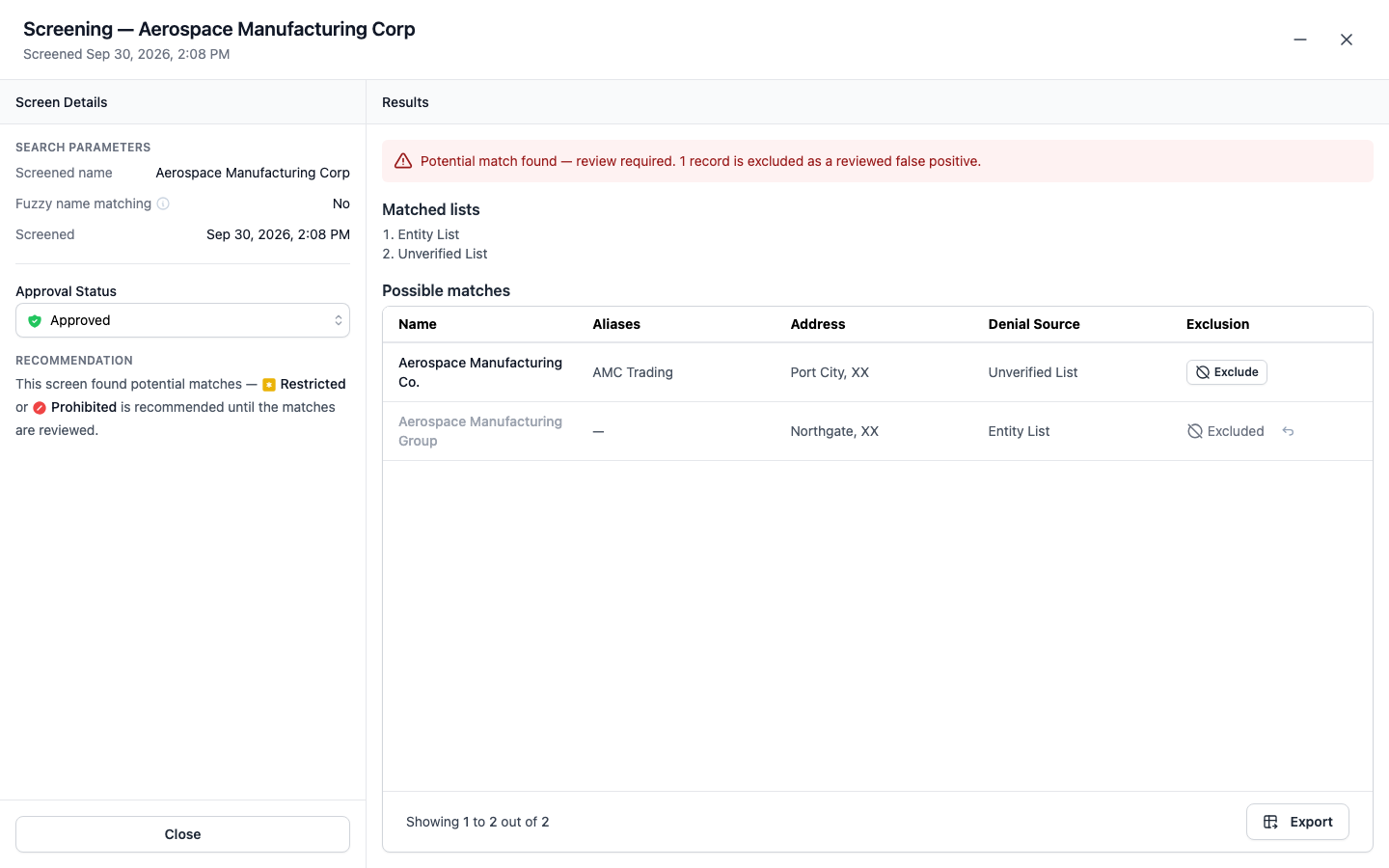
Open a screening result and find the record in the **Possible matches** table.
{% endstep %}

{% step %}

#### Exclude the record

Click **Exclude** in the record's **Exclusion** column, enter the reason it is not your supplier (for example, a different entity, address, or line of business), and confirm. The reason is kept with the exclusion.

<figure><img src="https://2684497859-files.gitbook.io/~/files/v0/b/gitbook-x-prod.appspot.com/o/spaces%2FwPsevXC0g5kNMF7GTyPN%2Fuploads%2Fgit-blob-e213d38305750881ca634887aca8023140836cac%2Fsupplier-screening-exclusions.png?alt=media" alt="Screening result with an Exclude action on one possible match and an Excluded marker on another"><figcaption><p>Screening result with an Exclude action on one possible match and an Excluded marker on another</p></figcaption></figure>
{% endstep %}

{% step %}

#### Run a new screen

Excluding a record does not change the result it was excluded from. Run a new screen to record the current outcome: excluded records are still listed and marked **Excluded**, and a run whose every match is excluded is reported as **Clear**. A result whose exclusions have changed since it ran shows a notice reminding you to re-run.
{% endstep %}
{% endstepper %}

Exclusions apply to one supplier only. The same list entry is still reported as a potential match for any other supplier it matches. If a list entry is later changed by its issuing agency, it is reported as a new match and needs to be reviewed again.

To reinstate a record, click **Include** next to its **Excluded** marker. Hover the marker to see who excluded the record, when, and why. Excluding and including records requires the **Edit Supplier** permission.

### Daily screening

Turn on **Daily screening** for a supplier to have Silkline screen it against the Consolidated Screening List every night, so you don't have to re-run screens by hand. Use it deliberately for the suppliers you want to watch closely, such as new vendors, higher-risk vendors, or suppliers in regulated or international trade. A focused set keeps results easy to review.

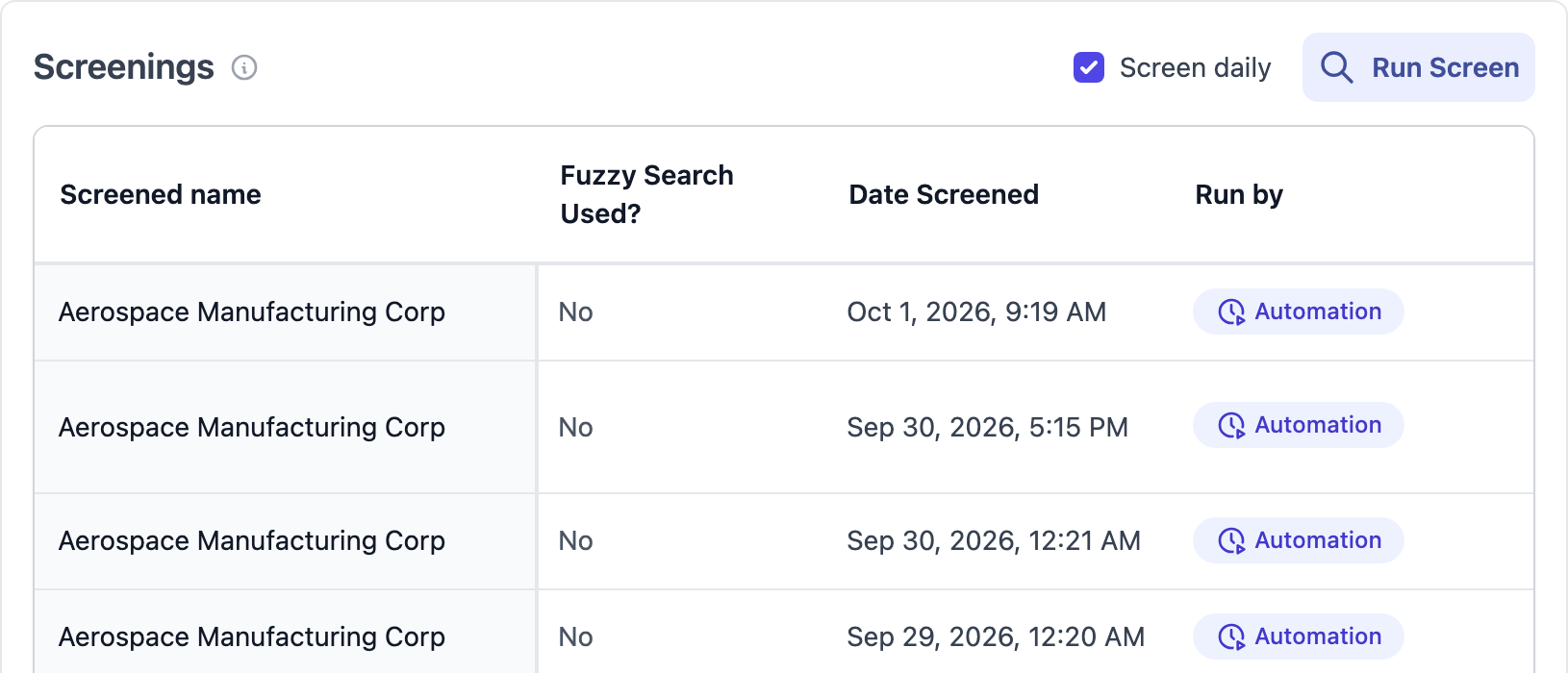
* **On one supplier:** turn on the **Screen daily** switch in the supplier's **Screenings** section.
* **On many suppliers:** on the **Suppliers** page, show the **Daily screening** column and check the box for each supplier. With [data cleaning mode](/administration-tools/data-cleaning-mode.md) on, you can also select suppliers, click **Edit**, and set **Daily screening** for all of them. Filter by **Daily screening** to see which suppliers are covered, and show the **Last screening** column for each supplier's latest result. Filter by **Last screening** to find suppliers whose latest screen, exact or broadened, was **Clear**, **Potential match** or **Error**, or that are **Not screened**. The column and filter use the result recorded when the screen ran, so excluding a match afterwards doesn't change them.

<figure><img src="https://2684497859-files.gitbook.io/~/files/v0/b/gitbook-x-prod.appspot.com/o/spaces%2FwPsevXC0g5kNMF7GTyPN%2Fuploads%2Fgit-blob-33368b51a79cd4c6f18bcfb035688d826ca2dbe4%2Fsupplier-screenings-daily-screening.png?alt=media" alt="Screenings section with the Screen daily checkbox checked and scheduled runs marked Automation"><figcaption><p>Screenings section with the Screen daily checkbox checked and scheduled runs marked Automation</p></figcaption></figure>

<figure><img src="https://2684497859-files.gitbook.io/~/files/v0/b/gitbook-x-prod.appspot.com/o/spaces%2FwPsevXC0g5kNMF7GTyPN%2Fuploads%2Fgit-blob-37deafb6c0fc35ba126f10e587c93e6a39d74dc0%2Fsupplier-daily-screening-columns.png?alt=media" alt="Suppliers table with the Daily screening and Last screening columns"><figcaption><p>Suppliers table with the Daily screening and Last screening columns</p></figcaption></figure>

Daily screens run each night between 08:00 and 14:00 UTC (about midnight to 7 AM Pacific), use exact name matching, and appear in the supplier's screening history with **Automation** as the runner. Archived suppliers are skipped. Changing **Daily screening** requires the **Edit Supplier** permission.

### Automatic Restricted status

When a daily screen, or an exact-match screen run by someone with the **Edit Supplier** permission, finds a potential match that is not excluded, Silkline sets the supplier's approval status to **Restricted** and shows a notice in the **Screenings** section. A broadened (fuzzy) screen never changes the status; you decide from the result.

<figure><img src="https://2684497859-files.gitbook.io/~/files/v0/b/gitbook-x-prod.appspot.com/o/spaces%2FwPsevXC0g5kNMF7GTyPN%2Fuploads%2Fgit-blob-e6119db4f77dc3be6c64608b59f0738ddd398327%2Fsupplier-screening-restricted-notice.png?alt=media" alt="Screenings section with a notice that a screening set the supplier to Restricted"><figcaption><p>Screenings section with a notice that a screening set the supplier to Restricted</p></figcaption></figure>

* Only an **Approved**, **Evaluation**, or unset supplier is set to Restricted. A **Prohibited** supplier is left as is.
* Screening only ever tightens a status. A later screen that finds no matches leaves the supplier Restricted.
* Excluding every matched entry restores the status the supplier had before. Removing an exclusion restricts the supplier again only when its latest exact-match screen was a daily screen.
* You can change the approval status yourself at any time, and Silkline keeps your choice. A later screen that still finds an unexcluded match sets the supplier to Restricted again.
* A connected system's sync can tighten a supplier's status but can't loosen one set by a screening or by a person. It can loosen a status it set itself, but not below Restricted while a screening restriction is in place.
* If your suppliers are managed by a connected system, the screen still runs and is recorded, but the approval status is not changed.
* Each automatic change is recorded in the supplier's **Activity** feed.

### Recent results

The **Screenings** section keeps this supplier's most recent screenings, giving you a short history of when checks were run and what they found. The section starts collapsed, showing the latest result beside its title; click the header to expand it, and it stays open on later visits until you collapse it.

<table><thead><tr><th width="191">Column</th><th>Description</th></tr></thead><tbody><tr><td>Screened name</td><td>The supplier name that was submitted to the list.</td></tr><tr><td>Search type</td><td><strong>Exact</strong> for exact name matching, or <strong>Fuzzy</strong> when broadened (fuzzy) name matching was enabled for that run.</td></tr><tr><td>Date Screened</td><td>When the screening was run.</td></tr><tr><td>Run by</td><td>Who ran the screening: the person who clicked <strong>Run Screen</strong>, or <strong>Automation</strong> for scheduled screenings. A dash means the runner was not recorded.</td></tr><tr><td>Potential hits</td><td>The number of potential matches returned.</td></tr><tr><td>Result</td><td>Clear, Potential match, or Error. A Clear result notes how many records were excluded as false positives. Click to reopen the full result.</td></tr></tbody></table>

### Setting approval status from a result

From a screening result you can set the supplier's [approval status](#approval-statuses) directly — for example, marking a flagged supplier as **Restricted** or **Prohibited** while you investigate, or **Approved** once a check comes back clear.

Anyone on your team can run screenings and view their results. Changing a supplier's approval status from a screening result requires the **Edit Supplier** permission; without it, the approval selector is disabled and a note indicates the permission is required.

## Tags

Supplier tags are a useful way to categorize and organize suppliers. Tags are flexible and can be used for several purposes, such as:

* Categorizing suppliers by capability / commodity group (e.g., services, sheet metal, 5-axis machined parts)
* Indicating supplier approval scope or quality level (e.g., Tier 1, Tier 2)
* Indicating compliance status (e.g., ITAR)

Tags can be used to select multiple suppliers at once when entering suppliers on a request. For example, a buyer could select the tag "sheet metal" to populate all suppliers with that tag.

On the **Suppliers** page, the **Tags**, **Approved Pedigrees**, **Purchasing Owner** and **Quality Owner** filters each offer a "no value" option: **No tags**, **No approved pedigrees** or **No owner**. Use it to find suppliers that still need one assigned, alone or together with other options.

## Supplier Data

Supplier data provides a flexible way to store and track important data for a supplier, like contracts, NDAs, W9/payment details, certifications, etc. Each supplier data item includes the following fields:

<table><thead><tr><th width="169">Field</th><th>Description</th></tr></thead><tbody><tr><td>Type</td><td>NDA, Certification, Financial, Contract, or Other</td></tr><tr><td>Name</td><td>The name or title of the supplier data item</td></tr><tr><td>Notes</td><td>Internal notes or additional details you wish to record for the item</td></tr><tr><td>Effective date</td><td>The date the item is effective (particularly useful for contacts)</td></tr><tr><td>Expiration date</td><td>The expiration date for the item (particularly useful for contracts)</td></tr><tr><td>Files</td><td>One or more file attachments</td></tr></tbody></table>

<figure><img src="https://2684497859-files.gitbook.io/~/files/v0/b/gitbook-x-prod.appspot.com/o/spaces%2FwPsevXC0g5kNMF7GTyPN%2Fuploads%2Fgit-blob-8cd13a38e538fad0af3c5aa709fd584f57ff8ffd%2Fsupplier-documentation-table.png?alt=media" alt="Supplier documentation table with the Export button in the footer"><figcaption><p>Supplier documentation table with the Export button in the footer</p></figcaption></figure>

Use the **Export** button below the supplier documentation table to download a CSV of the current view. Active filters and search terms are applied, every matching row is included, and the columns match those visible on screen. The **Files** column lists the attached file names.

The **Expiring Documents** widget on the Home page lists supplier data items that have expired or expire within the next 30 days, ordered by expiration date with the longest-expired first. Archived items and items belonging to archived suppliers are excluded. Click an item to open its supplier, or expand the widget to open the supplier documentation table filtered to expired and expiring items. To add or remove the widget, click **Customize** on the Home page.

{% hint style="info" %}
Several customers have requested notifications when a supplier data item (like an NDA) is expiring soon. We're planning to add this capability in the future!
{% endhint %}

### Document status on the Suppliers page

On the **Suppliers** page, filter by **Documentation** to pick one or more document types, then open **Status** inside that filter to narrow it to **Active**, **Expiring Soon** or **Expired** items. The status applies to the same item as the type, so **NDA** with **Active** lists suppliers that have an active NDA. Set **Documentation** to **is not** with **NDA** and **Active** to find suppliers without one. With no type picked, the status matches any of the supplier's items.

* **Active**: has no expiration date, or expires 30 or more days from today.
* **Expiring Soon**: expires within the next 30 days.
* **Expired**: the expiration date has passed.

Archived items are ignored. To see each supplier's status at a glance, show a status column such as **NDA Status** from the **Documents** section of the column menu. It shows the status of the supplier's best item of that type, or **Missing** if it has none.

## Supplier Scorecard

Silkline automatically tracks key performance metrics for suppliers across several categories:

### Performance Time Horizons

You can view performance metrics across different timeframes to understand both short-term trends and long-term reliability. The scorecard supports three time horizons:

* **3 Months (3m)**: Trailing quarter performance, useful for identifying recent changes in supplier performance.
* **12 Months (12m)**: Trailing year performance (default), providing a balanced view of consistent performance.
* **36 Months (36m)**: Long-term performance data covering up to the last three years of history.

{% hint style="info" %}
Supplier scorecards update hourly. We use periodic refreshes instead of real-time calculations to maintain performance when analyzing large historical datasets.
{% endhint %}

### Metrics Definitions

The following metrics are tracked for each supplier:

<details>

<summary>Responsiveness</summary>

<table><thead><tr><th width="232">Metric</th><th>Definition</th><th>Date Attribute</th></tr></thead><tbody><tr><td>Response Time</td><td>The time it takes for suppliers to confirm POs or submit check-ins</td><td>Order initial send or check-in creation date</td></tr><tr><td>PO Confirmation</td><td>The percentage of POs the supplier confirms</td><td>Order creation date</td></tr><tr><td>Check-in Completion</td><td>The percentage of check-ins that are completed, excluding canceled check-ins</td><td>Check-in creation date</td></tr></tbody></table>

</details>

<details>

<summary>Competitiveness</summary>

<table><thead><tr><th width="232">Metric</th><th>Definition</th><th>Date Attribute</th></tr></thead><tbody><tr><td>Time to Quote</td><td>The amount of time it takes for a supplier to submit a quote, measured as the difference between the creation of an RFQ and the issue date of a linked quote.</td><td>Quote issue or creation date</td></tr><tr><td>Bid Rate</td><td>The percentage of RFQs marked as complete, excluding canceled RFQs.</td><td>RFQ send date</td></tr><tr><td>Win Rate</td><td>The percentage of RFQs where a quote was converted to a Purchase Order, excluding canceled RFQs.</td><td>RFQ send date</td></tr></tbody></table>

</details>

<details>

<summary>Schedule</summary>

<table><thead><tr><th width="232">Metric</th><th>Definition</th><th>Date Attribute</th></tr></thead><tbody><tr><td>Original OTD</td><td>The percentage of line items where the first receiving event occurred on or before the Need Date</td><td>Line item receipt date</td></tr><tr><td>Latest OTD</td><td>The percentage of line items where the first receiving event occurred on or before the current ETA</td><td>Line item receipt date</td></tr><tr><td>Avg Days Late</td><td>The average number of days the first receiving event fell after the Need Date, across received line items. Line items received on or before the Need Date count as zero.</td><td>Line item receipt date</td></tr></tbody></table>

</details>

<details>

<summary>Quality</summary>

<table><thead><tr><th width="186">Metric</th><th>Definition</th><th>Date Attribute</th></tr></thead><tbody><tr><td>Issue rate</td><td>The percentage of line items that have an issue ticket associated with the line.</td><td>Issue creation or line receipt date</td></tr></tbody></table>

</details>

<details>

<summary>Spend</summary>

Spend metrics reflect firm spend only (orders in an OPEN or CLOSED state) and are converted to your organization's base currency.

<table><thead><tr><th width="186">Metric</th><th>Definition</th><th>Date Attribute</th></tr></thead><tbody><tr><td>Total Spend</td><td>The total cumulative spend with this supplier across all orders, including adjustments like discounts or fees.</td><td>Order creation date</td></tr><tr><td>YTD Spend</td><td>The total spend with this supplier in the current calendar year. Resets each January 1.</td><td>Order creation date</td></tr><tr><td>Trailing 12M</td><td>The total spend with this supplier over the trailing 12 months. Unlike YTD, this rolling annual figure moves forward continuously rather than resetting each January.</td><td>Order creation date</td></tr><tr><td>Avg Monthly</td><td>The average spend per month with this supplier, calculated from their first order to the present.</td><td>Order creation date</td></tr></tbody></table>

</details>

{% hint style="warning" %}
Some metrics require configuration to display. Contact **<support@silkline.ai>** if you would like certain metrics enabled for your account.
{% endhint %}

## Contacts

Store key contacts for each supplier, including primary and secondary points of contact. Primary points of contact as used as the default contacts when sending RFQs through Silkline.

Contacts with the **Send Orders** setting enabled are the supplier's **order contacts**: they are auto-selected when sending an order manually and are the recipients when an order is [auto-sent on approval](/orders/send-and-track-orders.md#sending-automatically-on-approval). An order contact must have an email address to receive orders.

Use tags to organize and identify contacts. For example, you could use have tags for billing, sales/quoting, quality, etc.

Silkline automatically attempts to enrich contact data such as name, job title, photo, and LinkedIn using third-party data sources. When creating a contact, you can simply enter the contact's email address and we'll attempt to fetch the rest of the contacts data. You can always manually input details by selecting "Enter Manually".

{% hint style="info" %}
Contact and supplier enrichment is not available in FedRAMP-enabled organizations. Enter contact details manually.
{% endhint %}

## Sharing a supplier

The **Share** button on a supplier page lets a supplier contact view the supplier's open and closed POs, and view and respond to its check-ins and evaluations. Pick one of the supplier's contacts, or type a new email address to add a contact. Silkline emails them a link to the supplier's open-order report. Access lasts 30 days.

The panel also lists everyone who currently has access, including people added from a check-in or evaluation, since those shares go through the supplier too.

## Transaction history

Silkline shows a transaction history for suppliers including:

* **Orders**
* **Request for Quotes**
* **Check-ins**

See an overview of transaction data for a supplier and navigate to a particular item.