> For the complete documentation index, see [llms.txt](https://docs.silkline.ai/llms.txt). Markdown versions of documentation pages are available by appending `.md` to page URLs; this page is available as [Markdown](https://docs.silkline.ai/requests/rfqs.md).
# RFQs
Create and send RFQs from a request to selected suppliers with files securely attached, and capture quote responses back into Silkline
RFQs belong to a Request and represent an external share of that request.
## Sending RFQs
To create an RFQ and send it to a supplier, click the "Send to Suppliers" button in the Actions bar when viewing a Request.
{% stepper %}
{% step %}
**Select suppliers**
Select the suppliers you want to send an RFQ to
If a selected supplier trips a validation rule, a review screen appears before you choose contacts. Suppliers that pass are included automatically.
* A supplier that fails a rule is included only if you tick **Include** next to it or click its card.
* When the organization setting **Block approval request when order has validation errors** is on, a supplier that fails a rule with **Error** severity is excluded. Only users who can edit organization settings can include it anyway.
The review appears only when your organization has **RFQ** validation rules, or has turned on supplier approval validation or the supplier pedigree allow list. An RFQ rule can check the request and the supplier together, for example requiring an ITAR-registered supplier when the request is flagged ITAR. Supplier rules only appear on the supplier's page.
{% endstep %}
{% step %}
**Select contacts**
Select the contacts for each supplier you want to send the RFQ to. The primary contacts for a supplier are automatically added by default.
{% endstep %}
{% endstepper %}
You're all set! A separate email thread is created for each supplier. For a given supplier, all recipients are listed in the **To:** field, allowing them to see who else has received the RFQ and coordinate internally. When suppliers respond, they will go directly to the sender.
## RFQ inbox
Each RFQ has its own inbox email address. Forward or CC an email to this address to add it to the request's activity feed, tagged with that RFQ. If a supplier replies only to you, forward their original email to the RFQ inbox with any quote attachment still attached.
To copy the address, click either:
* The **RFQ inbox** button (mail icon) in the action bar on the RFQ page
* The mail icon next to the RFQ on its RFQ-sent entry in the request's activity feed
Every email and its attachments are added to the request's activity feed. Silkline then uses AI to read the supplier's reply and decide what it is:
| The reply is… | Silkline… |
| ------------------------------------------------------------------------------------------------------- | ------------------------------------------------------------------------------------------------------------------------------------------------------------------------------------------------------------------------------------------------------------------------- |
| **A quote**, either attached (PDF, image, spreadsheet, HTML, or text file) or written in the email body | Creates a draft quote linked to the request and the RFQ, sets the supplier to the RFQ's supplier, [autofills it using AI](/quotes/adding-quotes.md#ai-autofill), and marks the RFQ **Complete**. A quote written in the email body is saved as an HTML file on the quote. |
| **A no bid**, where the supplier explicitly declines to quote | Marks the RFQ **No bid**, if it is still **Open** |
| **Anything else**, such as a question, a drawing request, an acknowledgement, or an out-of-office reply | Takes no further action |
Silkline reads the most recent message in the email. When that message forwards a supplier's reply, Silkline reads the forwarded reply instead.
Each email creates at most one quote. Other attachments stay on the activity feed entry.
{% hint style="info" %}
Emails to the inbox of a **Canceled** RFQ are added to the activity feed only. When a quote is created for a **No bid** RFQ, the RFQ is marked **Complete**.
{% endhint %}
## Supplier access
To access RFQs, suppliers can click the link in the email. To confirm their identity and download part files, suppliers must enter a matching email address and then click the magic link Silkline sends to that address.
### Expiration
Access to RFQs automatically expires 30 days after sending.
### Revoking access
Access to files can be revoked at any time through the "Share" button on a Request or RFQ. This revokes access to download files, but access through the share token remains until it expires.
### Adding access
After you send an RFQ, you can add access to external users using the "Share" button on an RFQ. This does not automatically resend the RFQ to newly added users; however, users can still download the files. This is useful if someone who was not initially sent the request needs access to download files.
### Copy share link
The Share button's **Anyone with link** section generates a view-only URL for the RFQ. Click **Copy** to create and copy the link. Links expire after 30 days.
{% hint style="info" %}
**Anyone with link** is not available in FedRAMP-enabled organizations. Suppliers sign in with the email address the RFQ was sent to, so unsharing removes their access right away.
{% endhint %}
{% hint style="info" %}
For full supplier access (including file downloads), send the RFQ or add the user via the contact field on the Share button instead.
{% endhint %}
{% hint style="info" %}
RFQs can be sent to shared email addresses (e.g., ). Anyone with access to the shared inbox can download files by logging in with that email address and clicking the magic link sent to that address. **Exercise caution when sending RFQs to shared inboxes to ensure all recipients are eligible to receive the shared files.**
{% endhint %}
## What the supplier sees
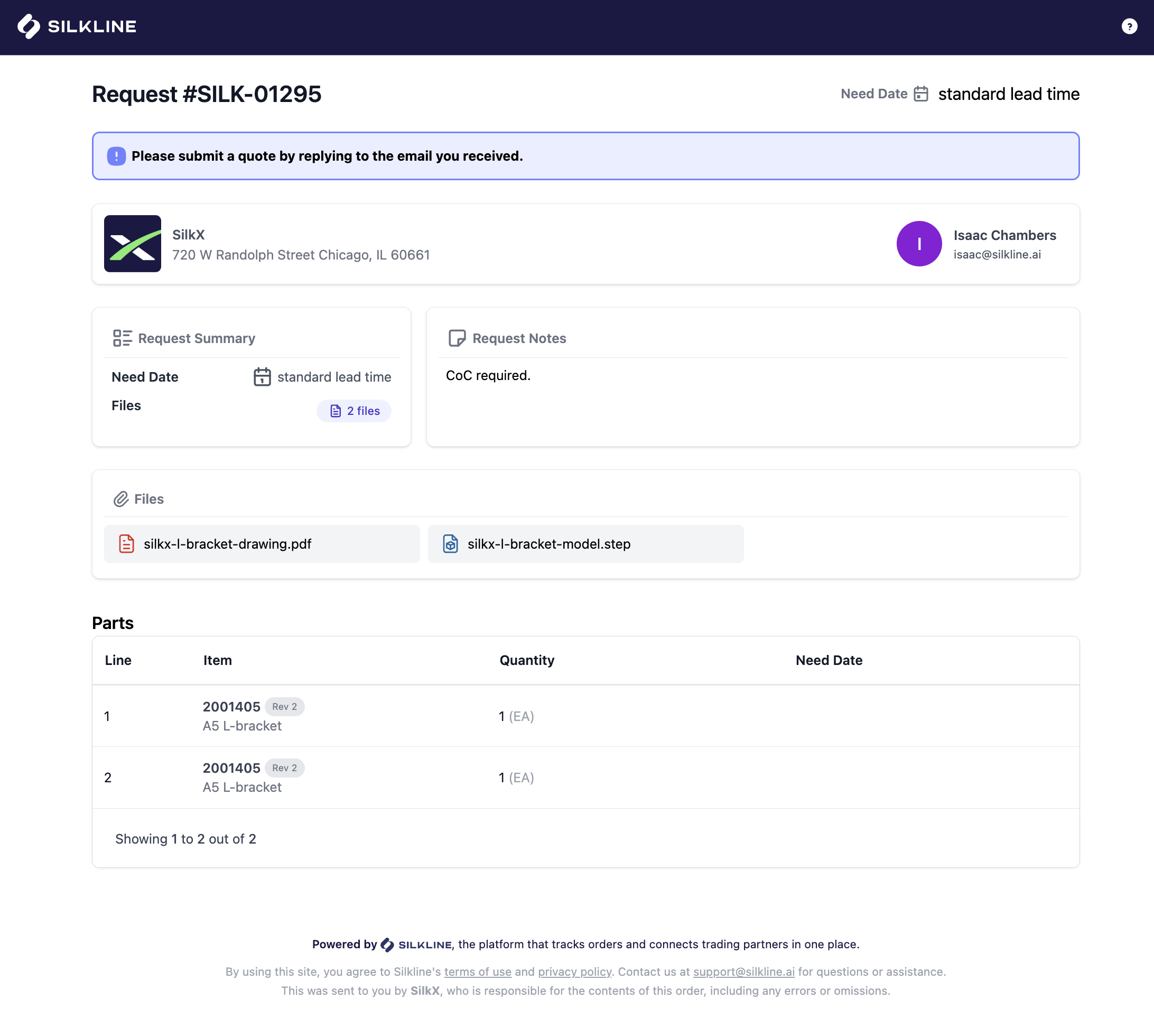
An RFQ looks like this for a supplier:
Example of supplier view of RFQ
To download files, suppliers are prompted to enter their email and click a magic link:
Example of supplier verification prompt
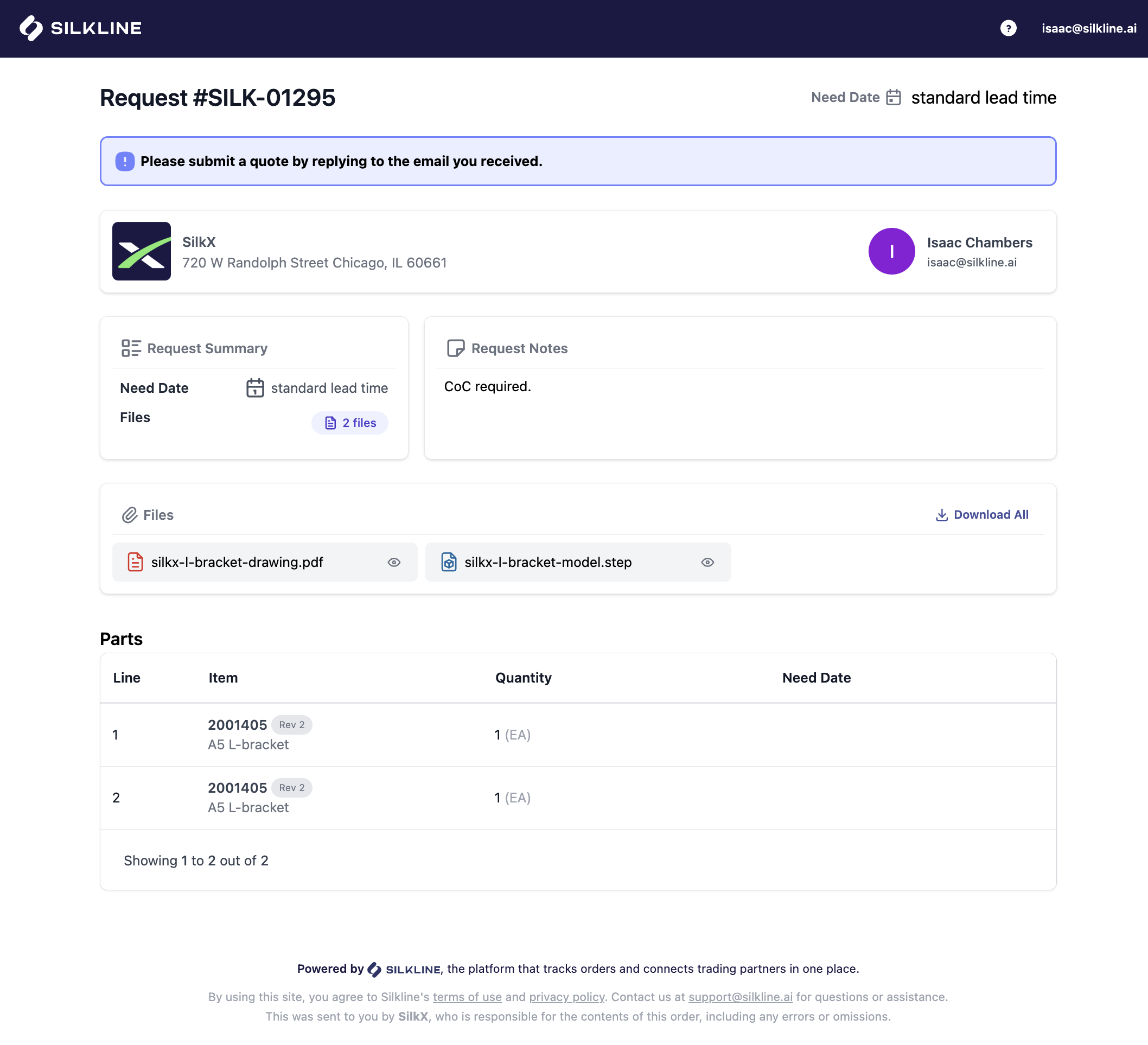
Once logged in, suppliers can preview and download files:
## RFQ status
RFQs have the following statuses:
* Open
* Complete
* No bid
* Canceled
You can click into an RFQ to view/manage details, add/remove access, and view the activity feed for that RFQ.