> For the complete documentation index, see [llms.txt](https://docs.silkline.ai/llms.txt). Markdown versions of documentation pages are available by appending `.md` to page URLs; this page is available as [Markdown](https://docs.silkline.ai/integrations.md).

# Integrations

View and manage connected integrations — see ingest and writeback capabilities, monitor sync health, and inspect failed sync records

Integrations connect Silkline to your external systems — such as NetSuite, First Resonance ION, Manufacturo, ProShop, and Ramp — to keep data in sync across your tools. Integrations can ingest data from external systems into Silkline (e.g., orders, materials, suppliers, and **issues from ION**), write data back from Silkline to external systems, or both. For details on viewing and managing issues, see [Issues](/issues.md).

## Viewing integrations

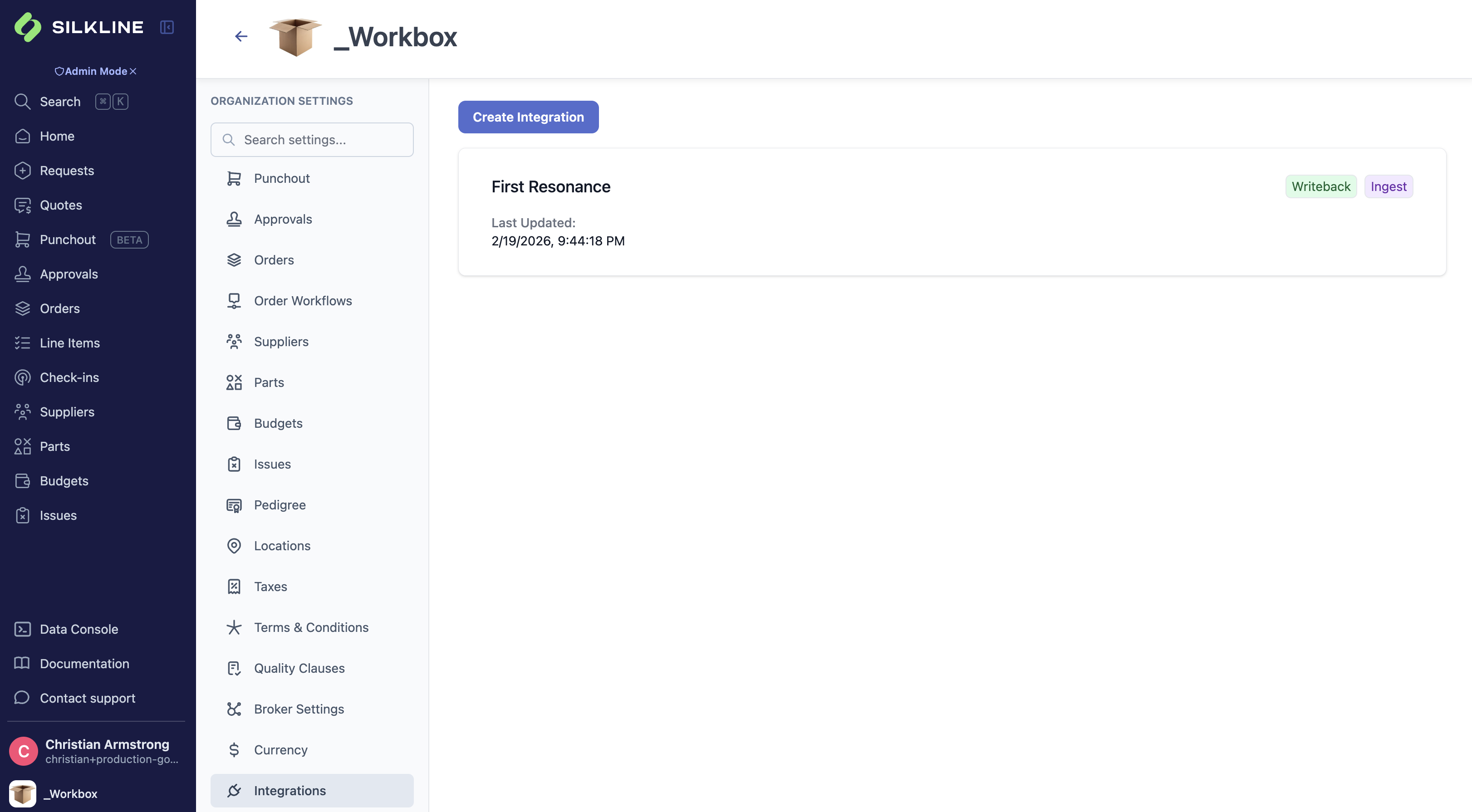
Navigate to **Organization Settings > Integrations** to see all configured integrations. Each integration appears as a card showing:

* **Name** - The display name of the integration (e.g., "NetSuite Production")
* **Capabilities** - Chips indicating whether the integration supports **Push** (syncing data back to the external system) and/or **Pull** (importing data into Silkline)
* **Last Updated** - When the integration was last modified

Click on an existing integration card to view its detail page. To set up a new integration, contact Silkline support — your account executive will coordinate the initial configuration with the Silkline team.

<figure><img src="https://2684497859-files.gitbook.io/~/files/v0/b/gitbook-x-prod.appspot.com/o/spaces%2FwPsevXC0g5kNMF7GTyPN%2Fuploads%2Fgit-blob-af5fff8886969feb5a83b5a4c82d077b09ee7f47%2Fintegrations-list.png?alt=media" alt="Integrations list in Organization Settings"><figcaption><p>Integration cards showing name, capabilities, and last updated</p></figcaption></figure>

{% hint style="info" %}
Creating and configuring a new integration requires Silkline support. Once an integration exists, users with the **Admin** role can edit it.
{% endhint %}

## Integration detail page

The integration detail page provides a full view of the integration's configuration and sync health.

### Configuration: Secrets

Integration credentials are stored securely and cannot be viewed after submission. The Secrets card shows whether a secret has been configured along with its creation and last-updated timestamps. Click **Edit Secret** to update credentials at any time.

### Statuses: Failed sync records

When records fail to sync, they appear in the **Failed Sync Records** table. You can filter by **Type** (resource type) to focus on orders, materials, suppliers, or other resource types. The table includes:

<table><thead><tr><th width="160">Column</th><th>Description</th></tr></thead><tbody><tr><td>Type</td><td>The type of resource that failed to sync</td></tr><tr><td>Resource ID</td><td>The Silkline resource identifier (click to copy)</td></tr><tr><td>External ID</td><td>The corresponding ID in the external system (click to copy)</td></tr><tr><td>Error</td><td>Error details (hover to see the full error message and path)</td></tr><tr><td>Last Updated</td><td>When the failure was last recorded</td></tr><tr><td>Actions</td><td>Buttons to re-pull or sync individual records</td></tr></tbody></table>

### Tools: Search & Import

For ingest-enabled integrations, the **Search & Import** card on the integration's **Tools** tab searches the external system directly and imports a chosen record into Silkline. Each integration exposes the resource types it can import as tabs, for example Purchase Orders and Vendors for Ramp, or Orders, Suppliers, and Materials for ION.

If the external system can't be searched, for example because it rejects the integration's credentials, the card shows the reason and a **Try again** button.

### Custom field refresh

Custom fields linked to an integration are refreshed from the external system automatically each day, keeping the field and its options up to date. Individual fields can be locked to block incoming updates — see [Configurable Fields](/profile-and-settings/organization-settings/configurable-fields.md#syncing-fields-from-integrations) for details.

## Sync management

### Sync status indicators

Throughout Silkline, sync-enabled records display a status indicator showing the current sync state:

* **No sync history** - The record has not been synced yet
* **Sync successful** - The last sync completed successfully
* **Sync skipped** - The last sync ran but made no changes because the record was already up to date
* **Sync in progress** - A sync operation is currently running
* **Last sync failed** - The most recent sync attempt failed

## Setup and configuration

For guidance on getting a new integration set up and configuring provider-specific settings, see [Managing Integrations](https://docs.silkline.ai/configuration/integrations/managing-integrations) and the provider-specific guides:

* [Boltline](https://docs.silkline.ai/configuration/integrations/boltline)
* [Custom API Integration](https://docs.silkline.ai/configuration/integrations/custom-api)
* [Dynamics 365 Business Central](https://docs.silkline.ai/configuration/integrations/dynamics)
* [Epsilon3](https://docs.silkline.ai/configuration/integrations/epsilon3)
* [First Resonance (ION)](https://docs.silkline.ai/configuration/integrations/first-resonance-ion)
* [HRIS](https://docs.silkline.ai/configuration/integrations/hris)
* [Manufacturo](https://docs.silkline.ai/configuration/integrations/manufacturo)
* [NetSuite](https://docs.silkline.ai/configuration/integrations/netsuite)
* [Procurify](https://docs.silkline.ai/configuration/integrations/procurify)
* [ProShop](https://docs.silkline.ai/configuration/integrations/proshop)
* [QuickBooks Online](https://docs.silkline.ai/configuration/integrations/quickbooks-online)
* [Ramp](https://docs.silkline.ai/configuration/integrations/ramp)
