> For the complete documentation index, see [llms.txt](https://docs.silkline.ai/llms.txt). Markdown versions of documentation pages are available by appending `.md` to page URLs; this page is available as [Markdown](https://docs.silkline.ai/for-suppliers/accessing-rfqs-and-pos.md).
# Access RFQs and POs
Supplier guide for opening RFQs and purchase orders sent from Silkline, downloading attached files, and verifying access with a magic link
Use this guide if your customer sent you an RFQ or Purchase Order (PO) from Silkline and you need to open it and download files.
## What you need
* The RFQ or PO email from your customer
* Access to that recipient inbox (if it is a shared/group inbox like `sales@example.com`, sign in with that same shared email address)
## Access an RFQ and download files
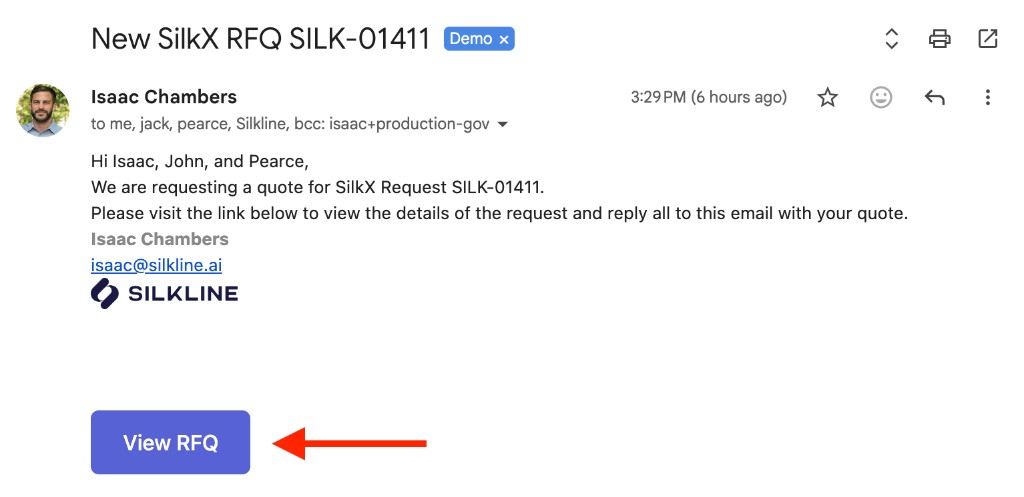
1. Open the RFQ email from your customer and click the link (you'll immediately see summary-level RFQ details if the link hasn't expired).
Example RFQ email with the View RFQ link
2. Click on a file and when prompted enter the same email address that received the RFQ.
3. Open the sign-in email Silkline sends to that address and click the magic link.
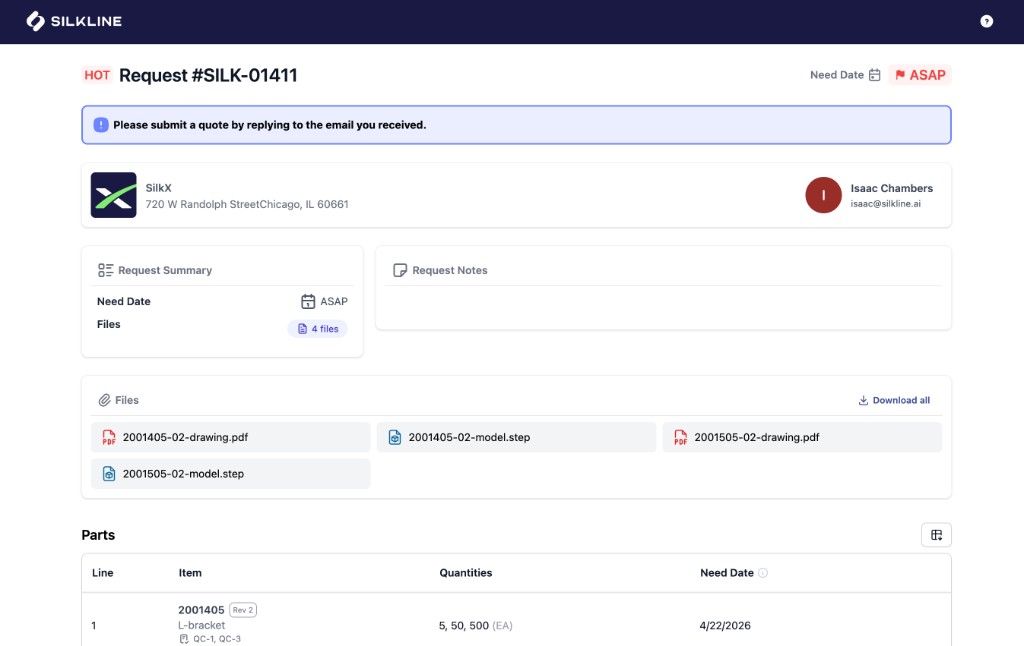
4. After verification, you will be able to download RFQ/PO files, including an option to download all files into a zip
Example supplier RFQ page with summary details and downloadable files
{% hint style="info" %}
RFQ access links expire 30 days after the RFQ is sent.
{% endhint %}
## Access a PO and download files
1. Open the PO email from your customer and click **View Order**.
2. Use the digital PO page to review order details and download available files.
{% hint style="info" %}
PO links are secure, tokenized links and do not require creating a Silkline account. PO access links expire 30 days after sending.
{% endhint %}
## Troubleshooting
* **Login button disabled:** Enter a full email address, such as `name@example.com`. Spaces before or after the address are ignored when signing in; spaces inside the address still need to be corrected.
* **Link expired:** Ask your customer to resend the RFQ or PO.
* **Didn't get the sign-in email:** Check spam/junk, then ask your customer to confirm the recipient email address.
* **Wrong email address used:** Restart from the original email link and verify with the same address that received the RFQ.
* **The email was forwarded to me by a colleague:** Access is tied to the original recipient inbox. Ask your customer (original sender) to resend the RFQ/PO to you directly or include your email as a recipient.
* **Your company policy says not to click links:** Silkline uses secure, tokenized links to protect sensitive intellectual property and controlled data (e.g., ITAR/CUI). You can validate the link by confirming it opens on the trusted `app.silkline.ai` domain.