# Check-ins
Check-ins allow buyers to quickly request updates from suppliers across all of their open line items across all orders.
{% hint style="info" %}
Check-ins can be initiated from a specific order or line item as a convenient way to request updates. Check-ins are across **all** open lines with a supplier, not just the order/lines the check-in was initiated from.
{% endhint %}
## Initiating a check-in
Check-ins can be initiated in several ways:
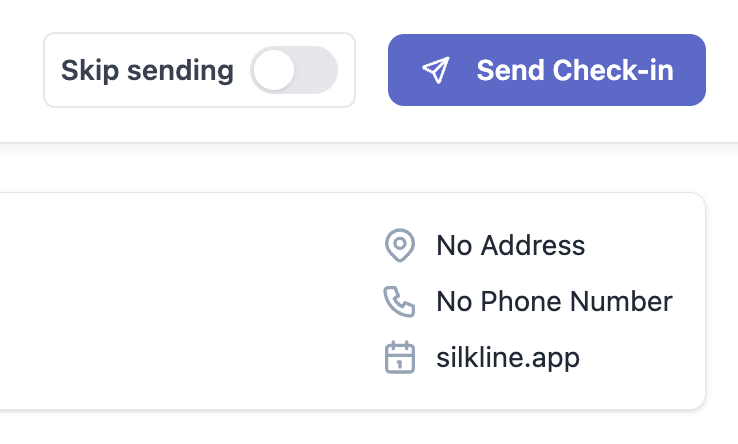
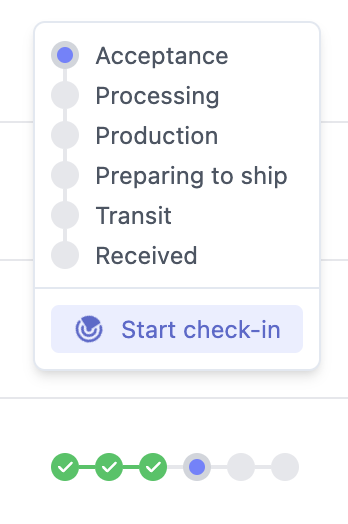
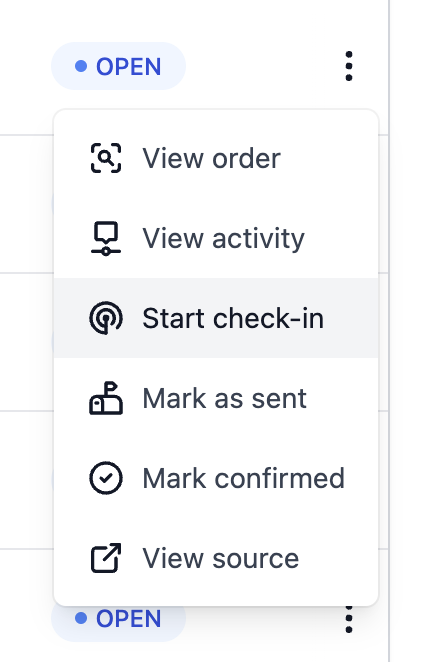
By clicking "Send Check-in" in the top right of a supplier's pageBy hovering over a status timeline on the Line Items page and selecting "Start check-in"By clicking "Start check-in" from the three-dot menu in a table of orders
## Sending a check-in
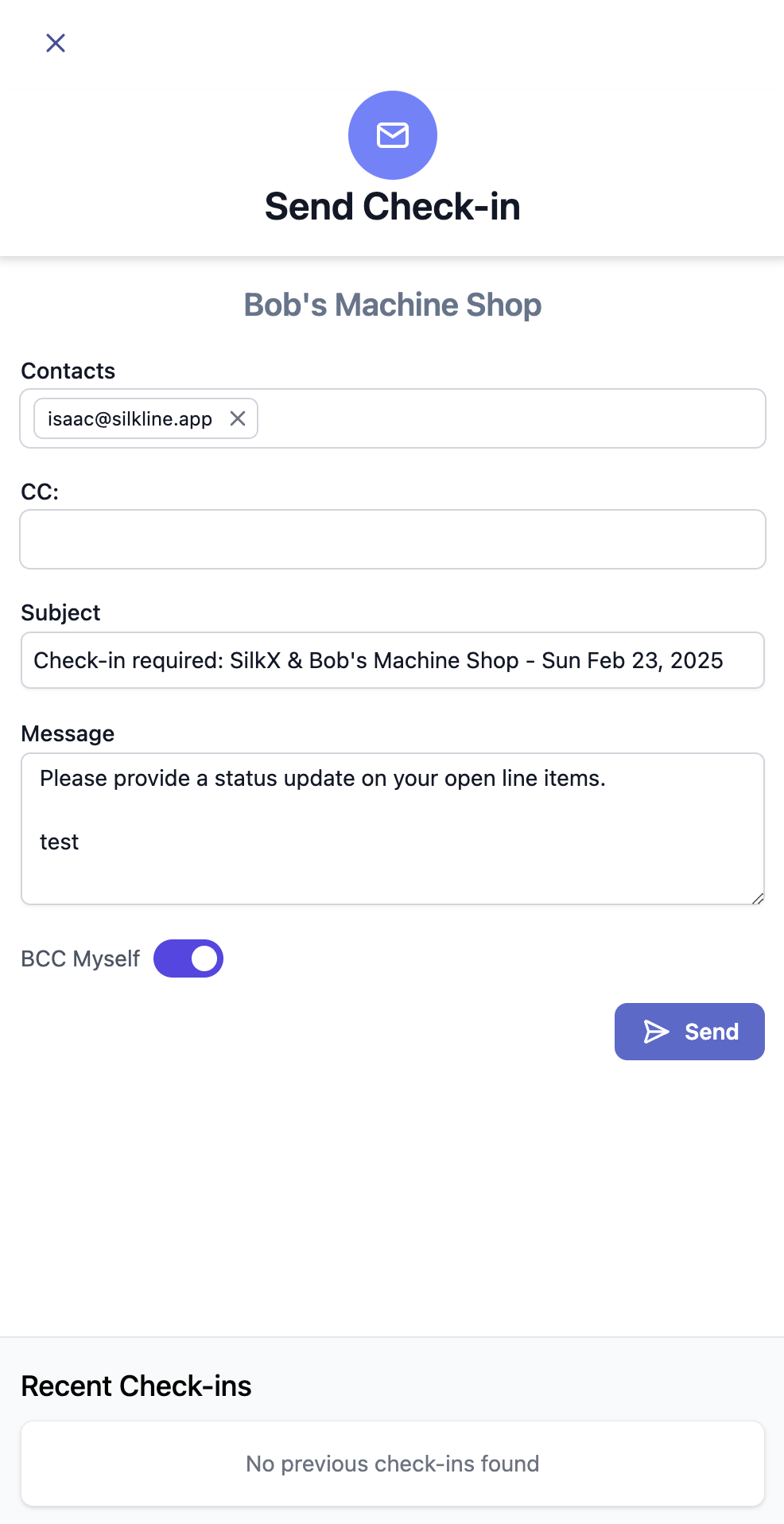
Sending a check-in is easy. Customize the message/instructions to the supplier, confirm the supplier contacts, and click send. Your message will appear both in the email sent to the supplier and the check-in request itself.
Silkline shows a preview of the last 3 check-ins so you can quickly see the context of prior check-ins before sending a new one.
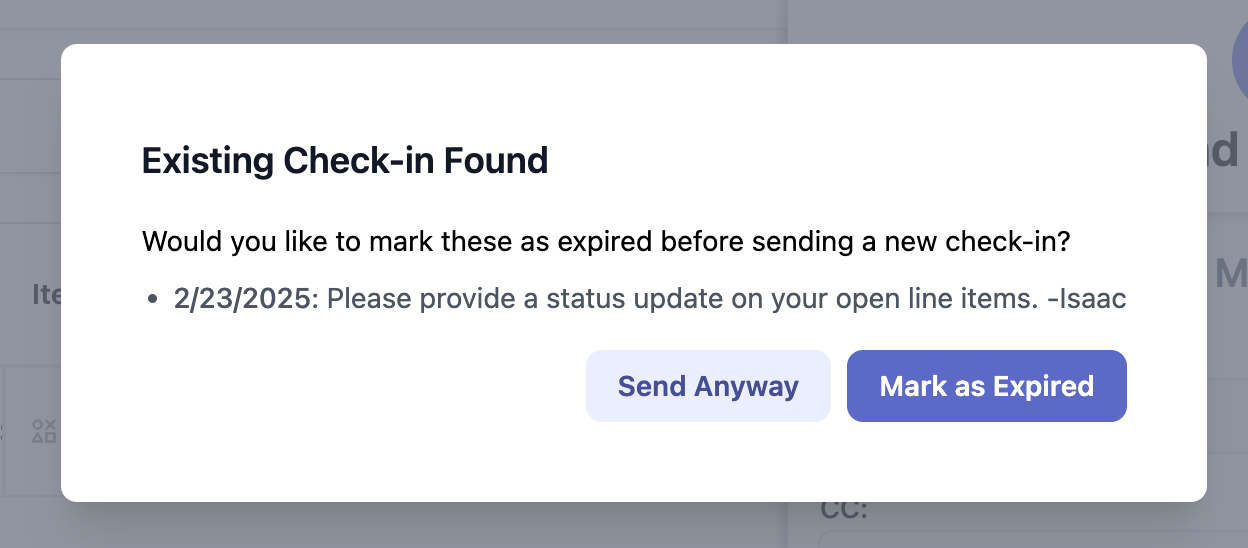
If an existing check-in is open when you try to send a new one, you'll be prompted with a message notifying you of the open check-in. You can select "Send Anyway" to keep the prior check-in open, or you can mark the prior check-in as expired.
## What the supplier sees
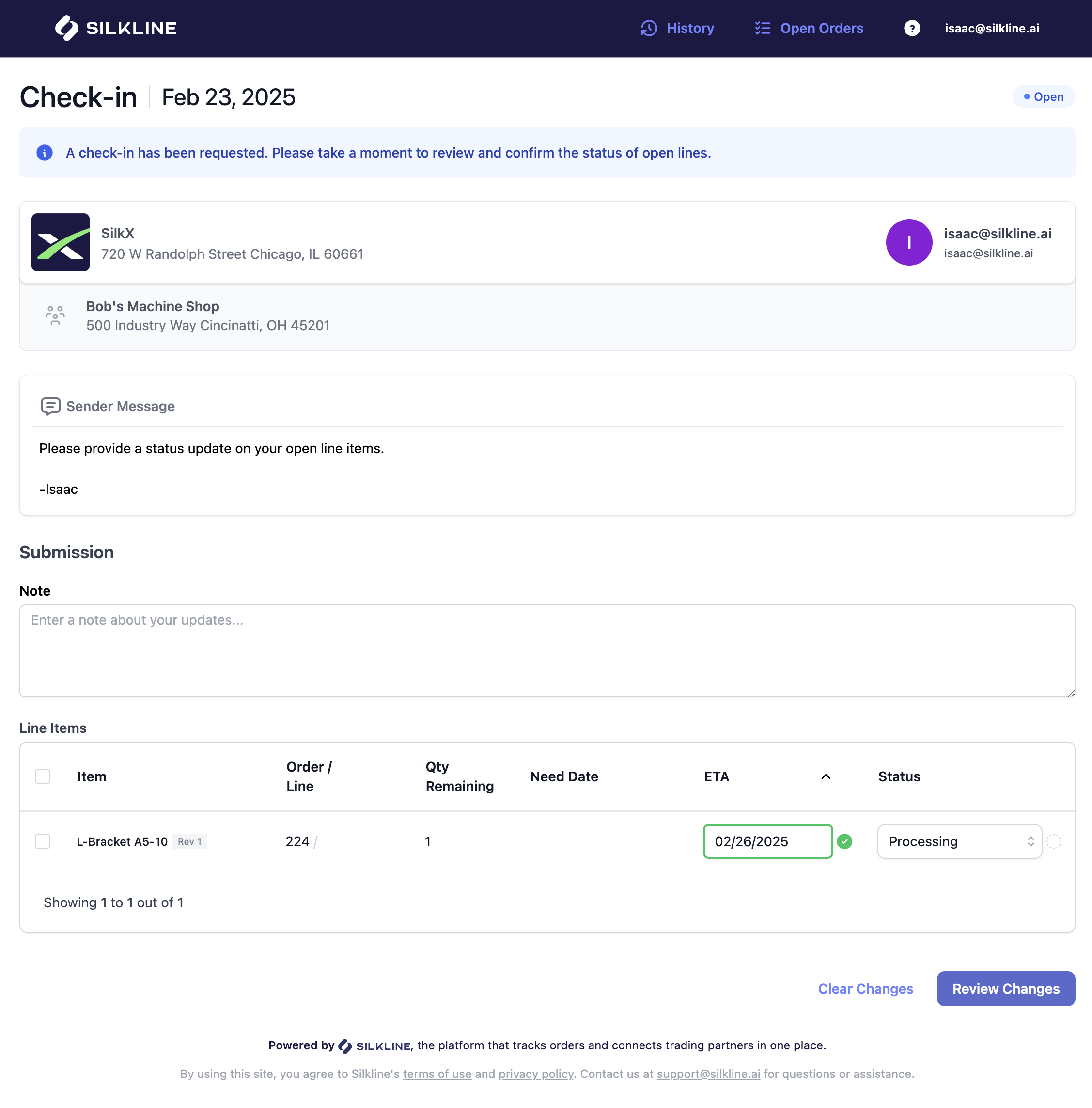
When suppliers open a check-in, they see a list of open lines where they can input updated ETAs and statuses. Updates made show with a green check next to it.
Suppler view of check-in
### Adding notes
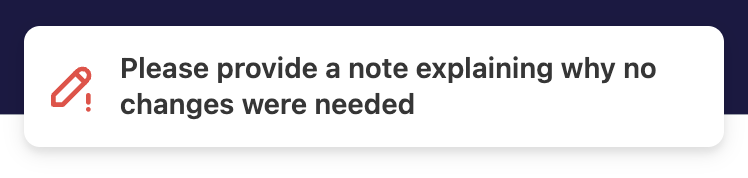
Suppliers have the option to include a note with their submission. When no updates are made to line item ETAs or statuses, a note is **required**.
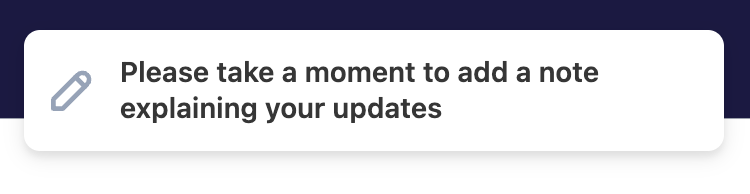
If the supplier has provided updates to ETAs or statuses, a note is **optional** but we gently reminder suppliers to add a note:
### Reviewing check-in
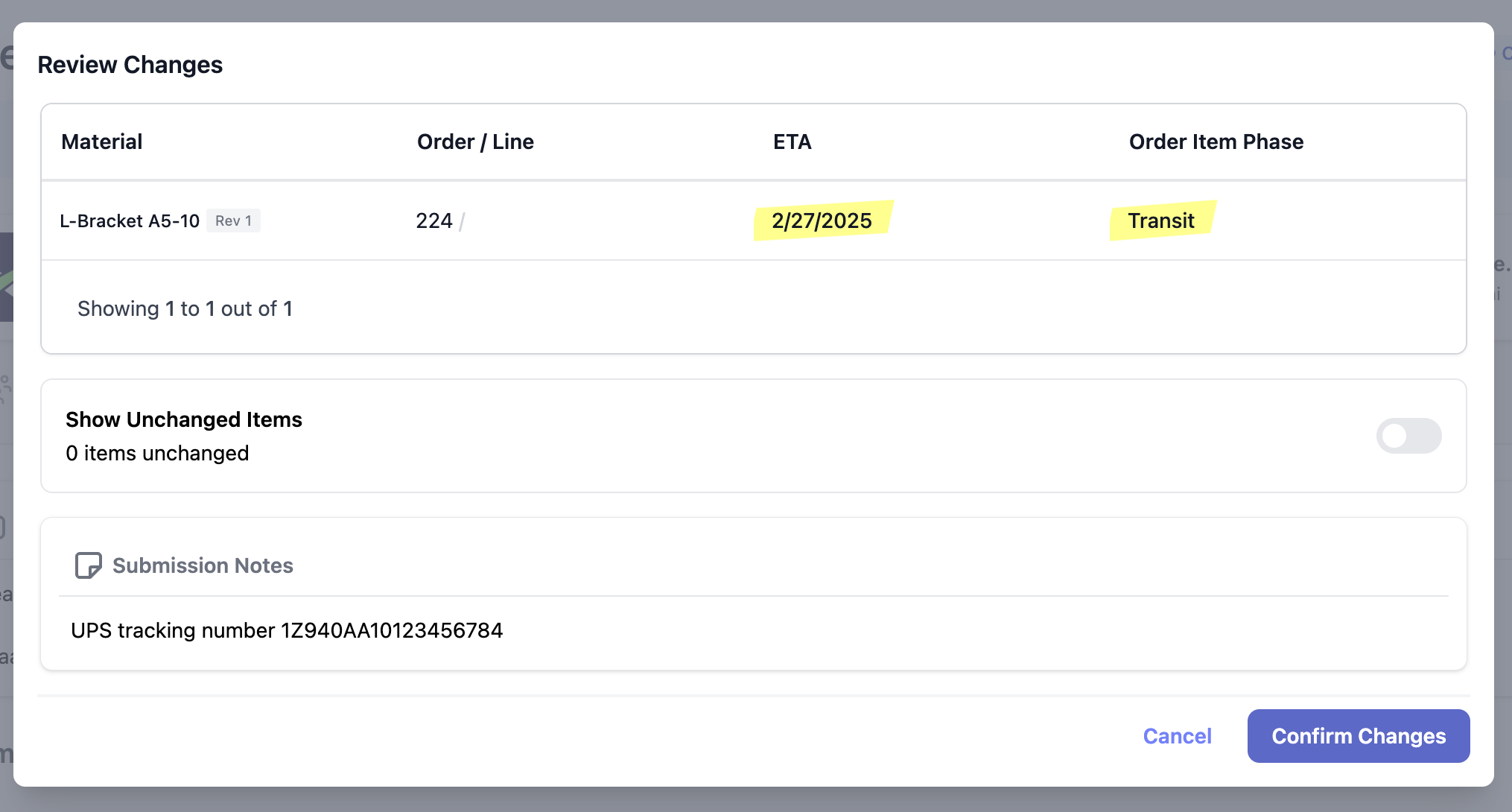
After a supplier provides updates, they can review their updates before submitting:
View of check-in review screen
Values that have changed are highlighted in yellow. Users can hover over the these values to see the previous values.
Once satisfied, the supplier submits the check-in by clicking the **Confirm Changes** button. The check-in is closed and locked from edits. Both the buyer and supplier continue to have access to check-ins once they are submitted until the token link expires. After a token link expires, access can be refreshed by sending a new check-in.
Suppliers can click the **History** button in the top menu bar to view a list of all prior check-ins and open a particular check-in. Suppliers can also view a current open orders report by clicking **Open Orders**.
## Buyer completion of check-ins
A buyer can complete a check-in on behalf of a supplier. To do this, the buyer can navigate to the supplier's page within Silkline and scroll down to the list of check-ins. Click on the check-in you would like to view/submit. The buyer is tagged as the user who complete the check-in.
{% hint style="info" %}
Check-ins can be a great format to run a standup call with a supplier. Share your screen and fill out the check-in together to capture updates and create a shared record of changes.
{% endhint %}
## Creating a check-in without sending
In some cases, you may want to create a check-in for a supplier without emailing the check-in. For example, if have updates from a supplier from another channel (e.g., phone call) you want to document. To do this, navigate to the Check-ins page and select "Submit Check-in" from the dropdown menu:
## What should I do if a supplier is ignoring my check-ins?
If a supplier does not respond to a check-in request, the recommended approach is to send a new check-in. When doing so, you’ll be prompted to expire any open check-ins.
If a supplier consistently ignores check-ins:
* Share their check-in score with them to provide visibility into performance.
* If appropriate, communicate that continued non-response may result in probation or corrective action.
This process ensures suppliers remain accountable while giving you tools to escalate if engagement does not improve.
## Check-in statuses
Check-ins have the following statuses:
* **Open** – Check-in is open for submission
* **Complete** – Check-in has been completed by either the buyer or supplier. Check-ins are a point-in-time status update and cannot be modified after they are submitted
* **Expired** – Check-in has expired and can no longer be submitted; expired check-ins count against a supplier's completion rate
* **Canceled** – Check-in has been canceled and can no longer be submitted; canceled check-ins do not count against a supplier's completion rate